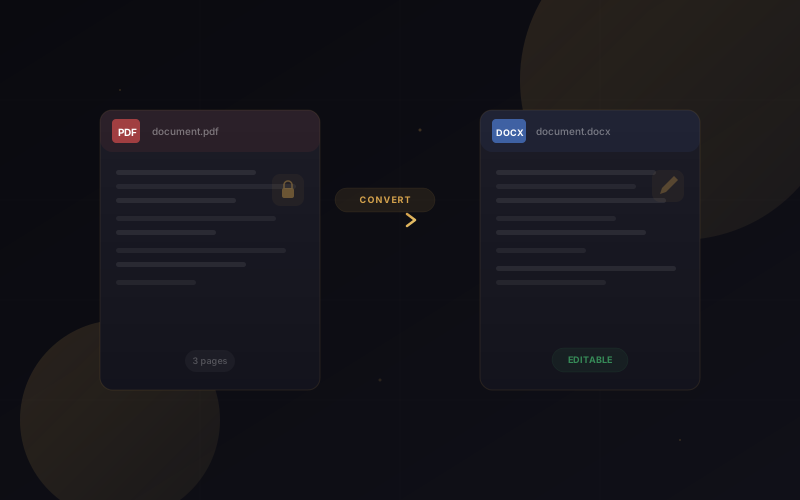
Getting the best results from a PDF to Word Converter starts with using a clear, high-quality PDF document. Whenever possible, convert PDFs that contain selectable text instead of scanned images, as this helps preserve formatting, headings, tables, fonts, hyperlinks, and page layouts more accurately. After conversion, review the Word document for any minor formatting adjustments, especially if the original PDF contains complex graphics, multiple columns, or custom fonts.
For even better document management, explore our PDF Merger to combine multiple files, PDF Splitter to extract pages, PDF to JPG for image conversion, JPG to PDF to create PDF documents, and browse our All Tools collection for more browser-based utilities.
To learn more about the PDF file format and document standards, visit Adobe Acrobat, Google Search Central, and MDN Web Docs. Following these best practices helps ensure faster conversions, improved formatting accuracy, secure document handling, and a smoother editing experience across Windows, macOS, Linux, Android, iPhone, and iPad.